
When the camera helps
A face on screen helps teaching, sales and any recording where trust matters. It gets in the way when you are pointing at small UI. Use it as a switch, not a default.
How the overlay works
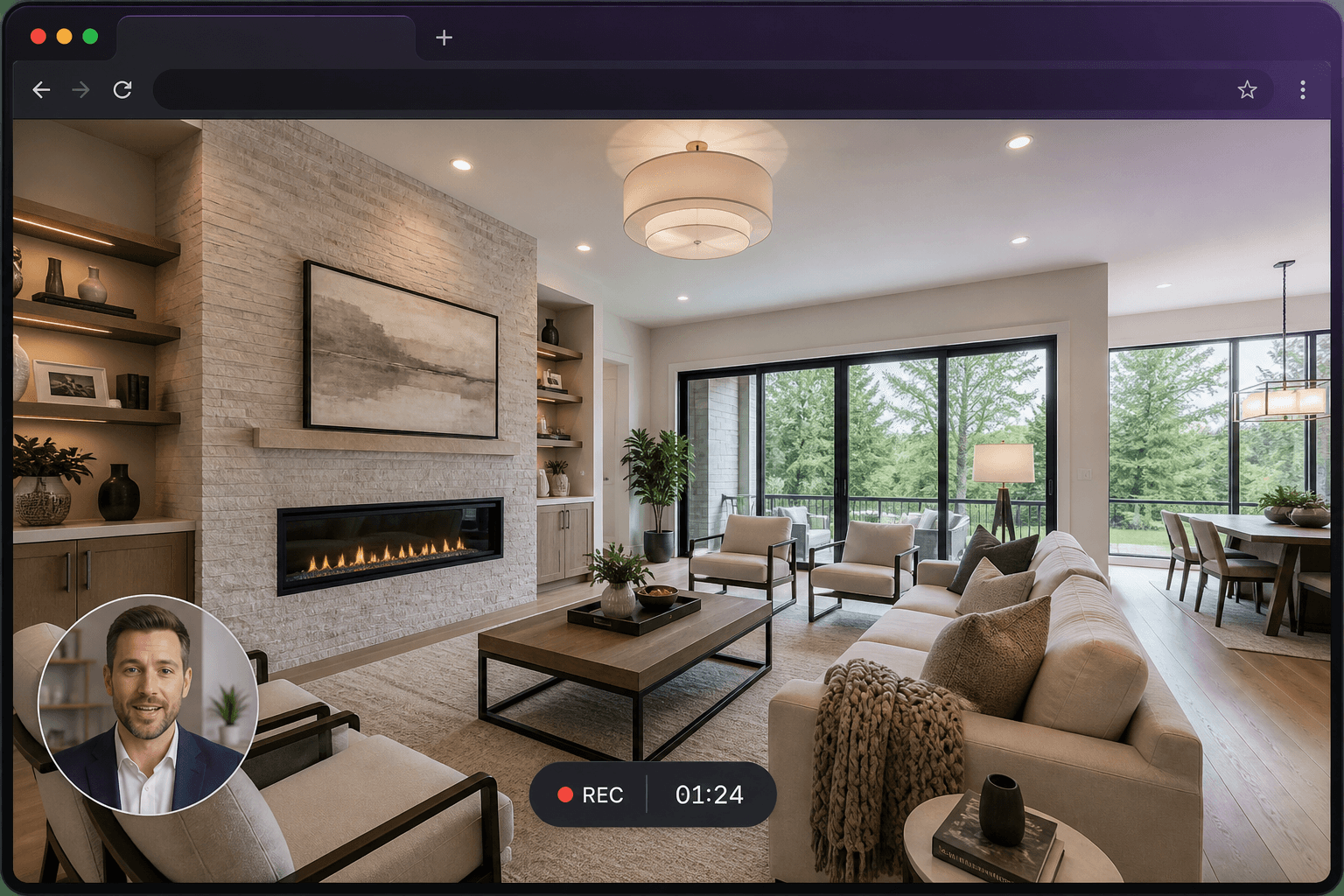
Enable the camera bubble, pick the device, then set position (any corner) and size (small, medium or large). The bubble is composited into the finished download after processing. On the share page, the camera can stay aligned with the screen playback.
Picture quality
Use light from in front of you. Avoid a bright window behind your head. The overlay is a communication aid, not a studio portrait. If the face is optional, leave the camera off and keep maximum resolution for the screen.
Privacy
The camera only records after you enable it and the browser grants permission. You can record without a camera. Share pages can be unlisted or password-protected.
Questions
Can I record webcam without the screen?
Screen Record is built around screen capture with an optional camera overlay, not as a standalone webcam booth.
Can I move the bubble after recording?
You set position and size before you start. Plan the corner so it does not cover the controls you will click.